Snapchat Dark Mode: How to Enable, Disable and Fix It 2026
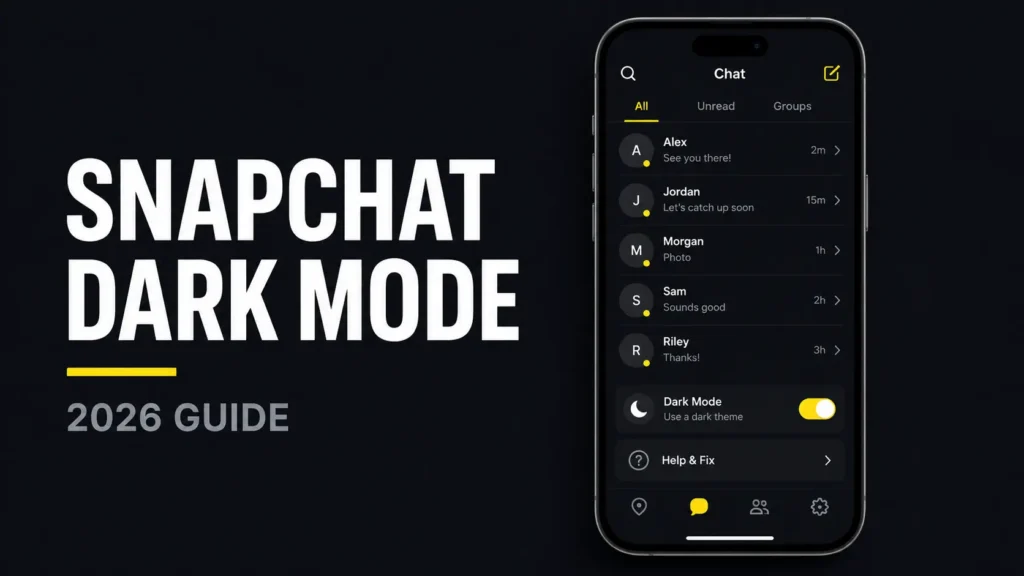
Snapchat Dark Mode replaces the app’s bright interface with a darker color scheme that can feel more comfortable at night or in a dim room. It is available through Snapchat’s built-in App Appearance setting on supported Android and iPhone versions, so you do not need Snapchat+, a modified app or a dark-mode APK.
To enable it quickly, open Snapchat and go to Profile → Settings → App Appearance → System Dark → Apply Theme. To return Snapchat to its normal white background, follow the same path and choose System Light.
The exact option names may differ slightly depending on your device and Snapchat version. This guide explains how to turn Snapchat Dark Mode on or off, why the app may suddenly change appearance and what to do when your selected theme will not stay saved.
What Is Snapchat Dark Mode?
Snapchat Dark Mode changes the app’s light backgrounds and interface elements to a darker appearance. Chats, Stories, menus and other supported areas use black or dark gray backgrounds with lighter text.
This is only a visual preference. It does not change how Snapchat works, hide the green Activity Indicator on Snapchat or affect your:
- Snaps
- Chats
- Stories
- Memories
- Snapstreaks
- Friends
- Privacy settings, including Snapchat Ghost Mode
Dark Mode is sometimes called a dark theme or night mode, but Snapchat currently places the feature under App Appearance. It should not be confused with a black-screen error. If Snapchat remains responsive and you can still see the hearts, symbols and controls covered in our guide to Snapchat emoji meanings, the dark background is probably an appearance setting. If the entire screen is blank, frozen or unresponsive, you are dealing with a technical problem.
Does Snapchat Have Dark Mode?
Yes, Snapchat has an official dark appearance for Android and iOS. You can normally find it under App Appearance in Snapchat Settings.
Standard Dark Mode does not require a paid subscription. As explained in our Snapchat Plus review, subscribers receive additional customization features, including custom application themes and icons, but these are separate from the regular System Dark option.
Searches such as “will Snapchat get dark mode?” and “when will Snapchat get dark mode?” are generally based on older information or come from users who cannot find App Appearance. Snapchat already supports the feature, although menus and option names can vary by device, account and application version.
How to Turn On Dark Mode on Snapchat
You can normally enable Snapchat Dark Mode in less than a minute:
- Open the Snapchat application.
- Tap your Bitmoji, profile picture or profile icon in the upper-left corner.
- Tap the gear icon to open Settings.
- Find App Appearance under Shortcuts.
- Select System Dark.
- Tap Apply Theme.
- Allow Snapchat to refresh if prompted.
Snapchat should reopen with a darker interface. Chats and gestures including the half swipe on Snapchat—should continue working normally because Dark Mode changes appearance rather than Chat behavior. If nothing changes, completely close the application, reopen it and check App Appearance again.
Some versions may display slightly different terms, such as an option that follows the device theme. Choose the dark option shown in your version rather than looking for one exact label.
How to Turn On Snapchat Dark Mode on iPhone
The appearance setting is available inside Snapchat on supported iPhones:
- Open Snapchat.
- Tap your profile or Bitmoji in the top-left corner.
- Tap the Settings gear in the top-right corner.
- Select App Appearance under Shortcuts.
- Choose System Dark.
- Tap Apply Theme.
If Snapchat does not change, close and reopen the app. You should also check whether an update is available in the Apple App Store.
If your Snapchat version follows the iPhone’s appearance, open the iPhone’s Settings, select Display & Brightness, and choose Dark. Reopen Snapchat afterward to see whether it follows the system setting.
An iPhone can also switch its appearance automatically at sunset or according to a custom schedule. If Snapchat changes from light to dark at a particular time each day, check the Automatic option under Display & Brightness. This appearance schedule is separate from Time Sensitive Snapchat notifications, which control how certain alerts are delivered.
How to Turn On Snapchat Dark Mode on Android
The steps for Android are similar:
- Open Snapchat.
- Tap your profile icon or Bitmoji.
- Open Settings using the gear icon.
- Tap App Appearance.
- Select System Dark.
- Tap Apply Theme.
If App Appearance is missing, update Snapchat through the Google Play Store and restart your phone. You can also open Android Settings, select Display, and enable the phone’s dark theme before reopening Snapchat.
The location and name of Android display settings vary between Samsung, Google Pixel, Xiaomi, OnePlus and other manufacturers. Search the phone’s Settings for “dark mode” or “dark theme” if you cannot find it manually.
Some Android devices also activate a dark system theme when Battery Saver is enabled. If Snapchat suddenly becomes dark, check whether the phone has entered Battery Saver mode.
Avoid forcing Snapchat into dark mode through Android developer settings. Forced dark mode can make text, icons or other interface elements difficult to see because it changes apps that may not be designed for that method.
How to Use Dark Mode on Snapchat Web
Snapchat Web’s appearance may depend on the current Web interface, browser or computer theme. First, inspect Snapchat Web’s settings for an appearance option. If one is not available, try changing the system appearance on Windows or macOS and then refreshing the browser.
Browser extensions that force every website into dark mode may produce incorrect colors or hide interface elements. Disable the extension for Snapchat Web if buttons, messages or icons become difficult to read.
Because Web controls can change independently from the mobile app, do not assume that changing Snapchat on your phone will automatically change it in your browser.
How to Turn Off Dark Mode on Snapchat
If you want Snapchat’s normal white background again, change the appearance back to light:
- Open Snapchat and tap your profile icon.
- Tap the Settings gear.
- Select App Appearance.
- Choose System Light.
- Tap Apply Theme.
- Reopen Snapchat if it remains dark.
If Snapchat returns to dark mode later, check the phone’s system theme and any automatic appearance schedule. A system-linked setting can make the app dark again when the device changes its appearance.
Snapchat+ users who applied a custom theme may need to change that theme separately through their Snapchat+ membership settings.
Why Did My Snapchat Suddenly Go Dark Mode?
Snapchat may suddenly become dark because it is following your phone’s system appearance. This can happen when the device activates scheduled dark mode, reaches a scheduled sunset time or turns on Battery Saver.
Other possible explanations include:
- Snapchat was updated and its appearance preference changed.
- Your phone changed from light to dark mode.
- Someone changed the setting while using your phone.
- Snapchat failed to save your previous appearance preference.
- A temporary application bug switched the selected theme.
- A Snapchat+ custom theme was applied.
First, open App Appearance and select System Light or System Dark again. If Snapchat continues selecting the opposite appearance whenever you restart it, the problem is more likely to be a setting or application bug.
Why Does Snapchat Keep Switching Between Dark and Light Mode?
Some users have reported that Snapchat does not save their selected appearance. Dark-mode users found the app returning to light mode after closing it, while other users experienced the reverse: their preferred light appearance repeatedly changed to dark.
The theme may appear correct immediately after you apply it but reset when you completely close and reopen Snapchat. Because the problem can affect both light and dark themes, it appears to involve the App Appearance preference rather than dark mode alone.
Try these fixes in order:
- Open App Appearance and select your preferred theme again.
- Tap Apply Theme before leaving Settings.
- Close Snapchat completely and reopen it to test the setting.
- Check whether your phone has an automatic theme schedule.
- Update Snapchat through the official application store.
- Restart your phone.
- Clear Snapchat’s cache.
- Update iOS or Android.
- Report the problem to Snapchat if it continues.
If many users begin experiencing the same behavior shortly after an update, it may be an app-side bug. In that situation, changing phone settings may provide only a temporary fix, and Snapchat may need to release another update.
Community reports can reveal that other people have the same problem, but they are not official confirmation of the cause.
Why Is Snapchat Dark Mode Not Working?
Dark mode may fail to apply because Snapchat is outdated, App Appearance is set incorrectly or the phone’s theme conflicts with the application.
Use this troubleshooting order:
1. Check App Appearance
Open Snapchat Settings and make sure System Dark is selected. Tap Apply Theme even if the option already appears selected.
2. Restart Snapchat
Completely close Snapchat rather than leaving it running in the background. Reopen it and check whether the appearance changed.
3. Update Snapchat
Visit the Apple App Store or Google Play Store and install any available Snapchat update. Older versions may use a different menu or contain appearance-related bugs.
4. Check the phone’s theme
If Snapchat follows the system appearance, a light phone theme can keep Snapchat light. Enable the phone’s dark appearance and reopen Snapchat.
5. Restart the phone
Restarting can resolve temporary app and display problems that survive after Snapchat is closed.
6. Update the operating system
An outdated iOS or Android version may cause compatibility problems with newer Snapchat releases.
7. Clear Snapchat’s cache
Cached files can occasionally contribute to temporary app problems. Clearing them is safer than immediately uninstalling Snapchat.
8. Reinstall Snapchat as a final step
Before uninstalling, confirm that your Memories show Backup Complete. Make sure you know your password and can access your email address, phone number and two-factor authentication method.
Reinstalling is not guaranteed to fix an app-side bug, so use it only after trying the less disruptive steps.
What to Do If App Appearance Is Missing
If you cannot find App Appearance, Snapchat may be outdated or its settings menu may have changed.
Try the following:
- Update Snapchat from the official app store.
- Restart Snapchat and your phone.
- Look under the Shortcuts section in Settings.
- Update iOS or Android.
- Confirm that you are using the official Snapchat application.
- Check whether Snapchat uses a different appearance label on your device.
- Wait for another update if the option disappeared after a recent release.
Do not install an unofficial APK simply because the option is missing. Modified apps can create security and account-access risks without guaranteeing that dark mode will work.
How to Clear Snapchat’s Cache
Clearing cache can help troubleshoot temporary display problems. According to Snapchat, it does not delete your Memories, Snaps or Chats.
On iPhone
- Open Snapchat Settings.
- Select My Privacy & Data.
- Tap Clear Cache.
- Confirm by tapping Clear.
On Android
- Open Snapchat Settings.
- Select My Privacy & Data.
- Tap Clear Data.
- Select Clear Cache.
- Confirm the action.
After clearing the cache, reopen Snapchat and apply the preferred appearance again.
Snapchat Dark Mode vs a Black-Screen Error
Dark mode and a Snapchat black screen are not the same problem.
| Snapchat Dark Mode | Snapchat black-screen error |
| Text, icons and menus remain visible | Screen may be blank or frozen |
| Snapchat continues working | App may become unresponsive |
| Controlled through App Appearance | Caused by a technical problem |
| Intentional dark interface | Not an appearance preference |
If Snapchat opens to a blank black screen, force-close it, restart the phone, update the application and clear its cache. Also check Snapchat’s camera permissions and available phone storage.
If the problem continues, reinstall Snapchat only after confirming your Memories are backed up and you can sign back into your account.
Did Snap Get Rid of Dark Mode?
Snapchat has not generally removed its dark appearance. If the option disappeared from your account, the application may need updating, the menu may have changed or a temporary bug may be affecting the feature.
Look for App Appearance under Shortcuts in Snapchat Settings. Update the app and restart the device if it is missing. Avoid assuming the feature was permanently removed based on a temporary glitch or a menu difference.
Snapchat can change setting labels and locations through updates, so instructions written for an older version may no longer exactly match what appears on your phone.
Is Dark Mode Better for Your Eyes?
Dark mode may feel more comfortable because it reduces the glare produced by a bright white interface in a dim room. However, it does not guarantee that you will avoid digital eye strain.
Comfort also depends on:
- Screen brightness
- Text contrast
- Room lighting
- Viewing distance
- Screen time
- How frequently you take breaks
Light mode may be easier to read in a bright environment, while dark mode may feel better at night. Use whichever appearance provides clear text and comfortable contrast. Reducing excessive brightness and taking regular screen breaks can be just as important as choosing a theme.
Does Snapchat Dark Mode Save Battery?
Dark mode may save some battery on phones with OLED or AMOLED displays. These screens can reduce power consumption when displaying genuinely black pixels because individual pixels produce their own light.
LCD screens use a backlight across the display, so switching to a dark background usually makes much less difference.
The actual effect also depends on screen brightness and how Snapchat is used. Recording videos, using the camera, watching Stories and using mobile data can consume more power than the interface colors themselves. Choose dark mode mainly for appearance and comfort rather than expecting a dramatic battery improvement.
Is a Snapchat Dark Mode APK Safe?
You do not need a special APK to get Snapchat Dark Mode. Third-party or modified Snapchat applications are not the official way to enable the feature.
Unofficial APKs may expose users to:
- Malware
- Stolen login details
- Personal-data collection
- Missing security updates
- Account restrictions
- Permanent loss of account access
Download and update Snapchat only through an official application store. If App Appearance is unavailable, troubleshoot the official app rather than installing an unknown modified version.
Does Dark Mode Change the Snapchat App Icon?
Dark mode changes Snapchat’s in-app appearance but does not necessarily change the icon displayed on your phone’s home screen.
Snapchat+ offers a separate custom app icon feature. Subscribers may also have access to custom app themes that change elements such as colors, tabs, badges and the capture button. Those paid customization options are different from standard Snapchat Dark Mode.
Frequently Asked Questions
Does Snapchat have dark mode on Android?
Yes. Open your profile, select Settings, tap App Appearance and choose System Dark. Update Snapchat through Google Play if App Appearance is missing.
Does Snapchat have dark mode on iPhone?
Yes. Go to Profile → Settings → App Appearance, select System Dark and apply the theme. Check the iPhone’s Display & Brightness settings if Snapchat follows the system appearance.
Why did my Snapchat suddenly go dark mode?
Your phone may have enabled scheduled dark mode, Battery Saver may have changed the system appearance or Snapchat may have reset its theme following an update. Check both App Appearance and your phone’s display settings.
How do I change dark mode to normal in Snapchat?
Open Snapchat Settings, select App Appearance, choose System Light and tap Apply Theme. If the app becomes dark again, disable scheduled dark mode or check whether Snapchat is following the phone’s system theme.
Did Snap get rid of dark mode?
No general removal has been announced through Snapchat’s current support instructions. If the setting is missing, update Snapchat, restart the phone and check under Shortcuts for App Appearance.
Why does Snapchat keep returning to light mode?
The App Appearance preference may not be saving, or Snapchat may be following the phone’s light theme. Reselect the dark option, apply it, update Snapchat and check system appearance settings.
Why does Snapchat keep turning dark by itself?
The application may be following scheduled system dark mode, Battery Saver or a theme preference that failed to save. Select System Light again and check the device’s automatic display schedule.
Do I need Snapchat+ for dark mode?
No. Standard dark mode is a regular App Appearance setting. Snapchat+ provides additional custom themes and icons, but it is not required for the normal dark appearance.
Is dark mode better for your eyes?
It may reduce glare and feel more comfortable in low light, but it does not eliminate eye strain. Screen brightness, room lighting, viewing distance and regular breaks also matter.
Is it safe to download a Snapchat dark-mode APK?
No unofficial APK is necessary. Modified applications can put your account, login details and personal information at risk. Use the official Snapchat app and its built-in appearance setting.
Final Thoughts
Snapchat Dark Mode can be enabled through Profile → Settings → App Appearance → System Dark. To restore the normal white background, select System Light instead.
If Snapchat changes themes by itself, check the phone’s system appearance, scheduled dark mode and Battery Saver settings. When the selected theme resets every time the app closes, update Snapchat, restart the device and clear the cache. Avoid unofficial dark-mode APKs, and reinstall Snapchat only after confirming that your Memories are fully backed up.