What Is Snapchat Ghost Mode and How to Enable It
Snap Map can show your location to friends you choose, which is useful for meeting up or letting someone know you arrived safely. Still, there are plenty of times when you may not want your location visible. Snapchat Ghost Mode gives you a quick way to hide it without stopping you from using the rest of the app.
When Ghost Mode is on, your location is hidden from other people on Snap Map. You can continue sending Snaps, chatting, posting Stories, making calls and maintaining Snapstreaks as usual. The setting affects location visibility only. It does not hide your online activity, including the green dot on Snapchat, Story, profile, read receipts or typing status.
You can leave Ghost Mode on until you turn it off or, if timer options are available on your account, use it for 3 hours or 24 hours. This guide explains how Ghost Mode works, how to enable or disable it, what friends can see and which other privacy settings you should check.
What Does Ghost Mode Do on Snapchat?
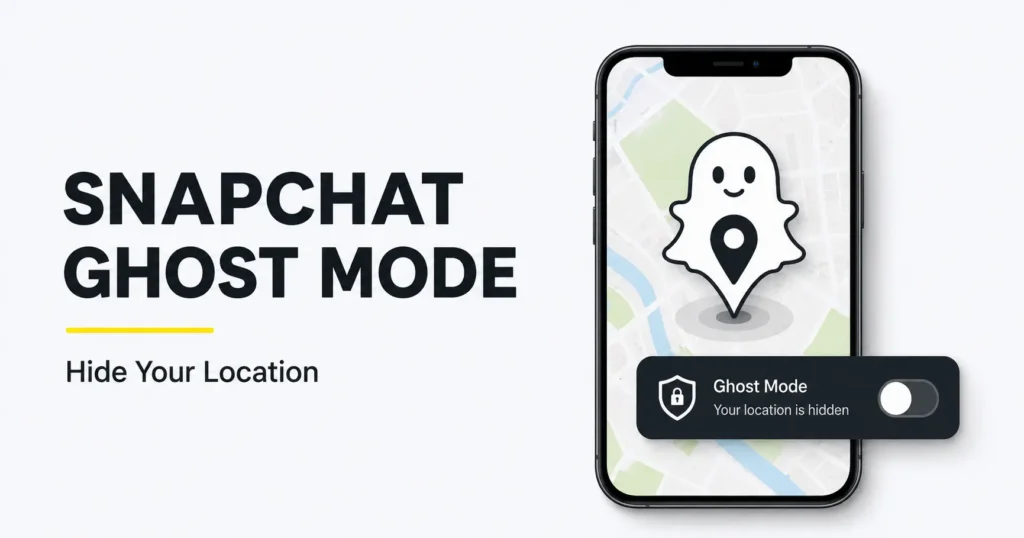
Ghost Mode is Snapchat’s official location privacy setting for Snap Map. When enabled, it prevents other Snapchat users from seeing your location on the Map. Friends who could previously see your location will no longer see your map position.
On your own screen, your Bitmoji may hold a blue sign with a ghost icon to show that Ghost Mode is active. Other people do not receive a Ghost Mode badge or label explaining why your location is unavailable.
Ghost Mode does not affect your:
- Chats or calls
- Snaps and Snapstreaks
- Stories
- Friends list
- Snap Score
- Profile visibility
- Read receipts or typing indicators
It is also different from Snapchat’s selective sharing options. My Friends, My Friends, Except… and Only These Friends… let you share your location with an approved audience. Ghost Mode hides your Snap Map location from everyone.
There is one important privacy detail. Snapchat says your location can still be shared with Snap while Ghost Mode is enabled, even though it is hidden from other people on the Map. If you want to prevent Snapchat from receiving new location data, you must also change Snapchat’s permission in your iPhone or Android settings.
How Snap Map Location Sharing Works
Snap Map location sharing is off by default. If you choose to use it, only the friends or family members selected in your Map settings can see your location.
How often that location updates depends on your device permission:
- Only while using: Snap Map updates your location while you are using Snapchat. After you close the app, it may show your last location, but it will not continue updating. Snapchat says this map location expires after 24 hours.
- Always or background access: Trusted friends you select may continue seeing your real-time location after you close Snapchat.
This means that simply closing Snapchat is not the same as enabling Ghost Mode. Closing the app may leave your last available location visible. Ghost Mode is the setting designed to stop that location from being shown to other users.
How to Enable Ghost Mode on Snapchat
You can turn on Ghost Mode directly from Snap Map or through Snapchat’s main privacy settings. Both methods control the same feature, and the change should apply as soon as you save it.
Enable Ghost Mode from Snap Map
- Open Snapchat.
- Open Snap Map by tapping the Map icon or pinching inward on the camera screen, depending on your app layout.
- Tap the gear icon in the corner of the Map to open Map Settings.
- Turn on the Ghost Mode toggle.
- If Snapchat shows a timer, choose 3 Hours, 24 Hours or Until Turned Off.
Your location will now be hidden from other people on Snap Map. You may see your own Bitmoji holding a ghost sign as a reminder.
Enable Ghost Mode from Snapchat Settings
- Open Snapchat and tap your profile icon or Bitmoji.
- Tap the gear icon to open Settings.
- Scroll to My Privacy & Data.
- Find the Who Can See section.
- Tap See My Location.
- Turn on Ghost Mode.
- Select a duration if Snapchat offers the timer.
Setting names and menu positions can change slightly between versions, but the option should lead to the same Snap Map privacy control.
How to Disable Ghost Mode on Snapchat
To turn Ghost Mode off, return to Snap Map, open Map Settings and switch off the Ghost Mode toggle. You can also go through Profile > Settings > My Privacy & Data > See My Location.
After disabling it, choose who can see your location:
- My Friends: Friends you have added back can see it.
- My Friends, Except…: All eligible friends except the people you exclude can see it.
- Only These Friends…: Only the specific friends you select can see it.
If you selected a 3-hour or 24-hour Ghost Mode timer, the setting ends automatically when that period expires. Your location becomes available to the audience selected in your location settings when Snapchat receives a new location update. With “Only while using” permission, this will usually happen after you open Snapchat. With background permission, it may update without the app being open.
If you do not want to share with everyone after leaving Ghost Mode, choose Only These Friends… before turning it off.
What Do Friends See When Ghost Mode Is On?
Friends cannot see your location on Snap Map while Ghost Mode is active. Snapchat does not send them a notification when you turn it on or off, and it does not show them a label that says you are using Ghost Mode.
From their point of view, your location is simply unavailable. They usually cannot tell whether you enabled Ghost Mode, revoked your phone’s location permission, excluded them from your sharing list or have not provided a recent Map update.
Ghost Mode does not prevent friends from contacting you or affect whether an alert is classified as Time Sensitive on Snapchat. It also does not prevent friends from:
- Viewing Stories shared with them
- Sending you Chats or Snaps
- Opening your profile
- Seeing normal message status
- Continuing a Snapstreak with you
If someone saw your location before you enabled Ghost Mode, the setting cannot erase what that person already remembers or captured in a screenshot. It stops your location from continuing to appear on the Map, but it cannot retrieve information that was previously seen.
Can You Tell If Someone Is Using Ghost Mode?
There is no official way to confirm that another person has turned on Ghost Mode. Snapchat does not place a ghost badge, privacy label or status beside that person’s name. Similarly, a gray X beside someone’s name on Snapchat relates to friendship or request status, not their Snap Map visibility.
A missing Bitmoji or location is not proof. Their position may be unavailable because:
- Ghost Mode is enabled.
- They excluded you using My Friends, Except….
- They selected a different group under Only These Friends….
- Snapchat does not have location permission on their phone.
- Their phone has no internet connection.
- Their location has not updated recently.
- A previously displayed location expired.
- They stopped sharing their background or Live Location.
Only that user can see exactly which setting is active. Snapchat intentionally does not provide a Ghost Mode detection tool because doing so would weaken the privacy feature.
Does Ghost Mode Hide Your Last Location?
Yes. Enabling Ghost Mode stops your location from being visible to other users on Snap Map, including the last map position that was previously being shared. It is more private than simply closing Snapchat.
If you only close the app and your permission is set to “Only while using,” friends may continue seeing the last location Snapchat received. Snapchat says that location can remain for up to 24 hours before expiring. If background location is enabled, the position may continue updating even after the app is closed.
Ghost Mode changes who can see your position. It does not necessarily stop Snapchat itself from processing location data when the app still has device permission. To prevent new access, change Snapchat’s location permission in your phone settings to Never or turn off location access for the app.
Ghost Mode vs. Invisible Mode: What Is the Difference?
Snapchat does not have an official feature called Invisible Mode. People commonly use that phrase online when they actually mean Ghost Mode.
| Common claim about “Invisible Mode” | What Ghost Mode actually does |
| Makes the whole account invisible | Hides your Snap Map location only |
| Hides online activity | Does not hide general app activity |
| Hides Stories and profile | Story and profile privacy stay unchanged |
| Removes read receipts | Read and delivery indicators still work normally |
| Stops people from messaging you | Friends can still send Chats and Snaps |
If your goal is to hide your location, Ghost Mode is the correct setting. If you want to limit Stories, messages or profile visibility, review those privacy controls separately.
Is Snapchat Ghost Mode Safe to Use?
Yes. Ghost Mode is an official Snapchat privacy feature and is safe to enable. It gives you control over who can see your position on Snap Map without requiring a third-party app or modified version of Snapchat.
Privacy Benefits of Ghost Mode
- Hides your Snap Map location from other Snapchat users
- Can be enabled temporarily or until you turn it off
- Does not interrupt normal Snapchat features
- Can be changed whenever your privacy needs change
- Helps prevent casual friends from following your movements on the Map
Limitations of Ghost Mode
- It does not make your Snapchat account invisible.
- It does not change Story, Chat or profile privacy.
- It does not erase a location someone already saw or captured.
- It does not automatically hide public Snaps submitted to Snap Map.
- It does not necessarily stop Snapchat from receiving location data.
- It may not override a separate Live Location share with a trusted friend.
For stronger privacy, use Ghost Mode together with careful Story settings, a trusted sharing list and appropriate device location permissions. Remember that your location-sharing audience is separate from your automatically generated Snapchat Best Friends list.
How to Share Your Snapchat Location With Selected Friends
You do not have to choose between sharing your location with everyone and hiding it from everyone. Snapchat offers selective options for people who only want trusted friends or family members to see where they are.
Open Snap Map, tap the gear icon and choose one of these settings:
- My Friends: Shares with friends you have added back.
- My Friends, Except…: Shares with eligible friends except those you select.
- Only These Friends…: Shares only with the friends you choose.
- Ghost Mode: Hides your location from everyone on Snap Map.
Only These Friends… is often the best choice for family members, close friends or a small meetup group. Friends who are not included cannot see your location, but they can still communicate with you normally.
Review the list regularly. Under My Friends, people you add in the future may also receive access, so it is important to know which setting you selected.
Ghost Mode on iPhone vs. Android
Ghost Mode works the same way inside Snapchat on iPhone and Android. It also works normally when you use Snapchat Dark Mode. The main differences involve each operating system’s location permission controls.
| Device | Snapchat setting | Where to check phone permission |
| iPhone | Snap Map > Settings > Ghost Mode | iPhone Settings > Privacy & Security > Location Services > Snapchat |
| Android | Snap Map > Settings > Ghost Mode | Android Settings > Apps > Snapchat > Permissions > Location |
On iPhone, location choices may include Never, Ask Next Time, While Using the App and Always. Android wording varies by phone manufacturer and version, but common choices include Don’t Allow, Ask Every Time, Allow Only While Using and Allow All the Time.
If Snap Map does not update after you turn Ghost Mode off, confirm that Snapchat has permission to access location. Samsung, Google Pixel, Xiaomi and other Android phones may place the permission menu in slightly different locations.
Does Ghost Mode Hide Snap Map Posts or Stories?
No. Ghost Mode hides your personal location on Snap Map, but it does not automatically hide Stories or public Snaps you submit to the Map.
A Snap voluntarily submitted to Snap Map may still appear there regardless of your Ghost Mode setting. That post is controlled by its own sharing, moderation and retention rules. Ghost Mode also does not change the audience for My Story, Private Story or Shared Story. A lock on a Snapchat Story indicates a Private Story and is unrelated to Ghost Mode.
Think of these as separate privacy controls:
- Ghost Mode controls your live or last known location on Snap Map.
- Story privacy controls who can see your Story.
- Map submission choices control content you voluntarily submit to Snap Map.
If you want to reduce your visibility, review all three instead of relying on Ghost Mode alone.
Why Some Snapchat Users Leave Ghost Mode Off
Some people keep location sharing enabled because it can be convenient. Close friends may use Snap Map to meet at a busy event, family members may use it to check that someone arrived safely and travel companions may use it to find each other.
Leaving Ghost Mode off does not mean you have to share with every friend. Only These Friends… can be more practical when a small group needs your location for a limited reason.
Ghost Mode is particularly useful when traveling, visiting an unfamiliar place, spending time in a private location or simply wanting a break from location sharing. Selective sharing may be more suitable for meetups, family check-ins or journeys where a trusted person needs to know your position.
There is no single correct choice. The safest approach is to share only with people you know and trust, for no longer than necessary.
Common Snapchat Ghost Mode Issues and Solutions
Most Ghost Mode problems come from a connection delay, an outdated app, device permissions or confusion between regular Snap Map sharing and Live Location.
| Problem | Possible cause | What to do |
| Ghost Mode will not stay on | Setting did not sync or Snapchat has a temporary bug | Check your connection, enable it again, restart Snapchat and update the app |
| A friend can still see a location | Live Location may still be shared, or they saw an earlier location | Stop any separate Live Location share and confirm Ghost Mode is enabled |
| Ghost Mode option is missing | Snapchat is outdated or the menu changed | Update Snapchat and check See My Location under My Privacy & Data |
| Location does not return after disabling it | Snapchat has no location permission or has not received a new update | Open Snapchat with location access enabled and check your audience setting |
| Snap Map is not updating | Weak internet, disabled GPS or restrictive permission | Check connection, Location Services and Snapchat permission |
| Friends cannot see you even with Ghost Mode off | They are excluded or not selected | Review My Friends, Except… and Only These Friends… |
| A public Map Snap is still visible | Ghost Mode does not control voluntary Snap Map submissions | Review or remove the submitted content where possible |
You can also clear Snapchat’s cache to address a temporary Map or settings glitch. In Snapchat Settings, open My Privacy & Data and select Clear Cache. On some Android versions, you may first need to tap Clear Data and then Clear Cache. Snapchat says clearing its cache does not delete Memories, Snaps or Chats.
Ghost Mode and Live Location
Regular Snap Map sharing and Live Location are related but not identical. Snap Map can show the location Snapchat last received or update it in the background, depending on permission settings. Live Location is a more direct share with a trusted friend for real-time updates.
Snapchat’s current Ghost Mode guidance notes that your own Bitmoji displays the ghost sign unless you are sharing Live Location. This means you should not assume Ghost Mode automatically ends every separate Live Location share.
If you want to disappear from the Map completely:
- Turn on Ghost Mode.
- Check whether Live Location is active with any friend.
- Stop those Live Location shares separately.
- Change Snapchat’s device permission if you also want to stop new location access.
This extra check is important when location privacy matters.
Frequently Asked Questions
Is Ghost Mode permanent once turned on?
It can be. Choose Until Turned Off to keep Ghost Mode active until you manually disable it. Some users can also choose a 3-hour or 24-hour timer, after which their previous location-sharing setting resumes.
Can my friends tell that I turned on Ghost Mode?
No direct notice or Ghost Mode label is shown to friends. They may notice that your location is unavailable, but they cannot confirm whether you enabled Ghost Mode, changed your audience or disabled location permission.
What is the difference between Ghost Mode and blocking someone?
Ghost Mode hides your location but leaves the friendship and normal Snapchat interactions unchanged. Blocking prevents the blocked account from communicating with you or viewing content available through that connection.
Does Ghost Mode use more battery than normal?
Ghost Mode itself should not meaningfully increase battery use. Location access, GPS, background location and frequent Map updates are more relevant to battery consumption. Restricting Snapchat to “Only while using” may reduce background location activity.
How can you tell if someone is on Ghost Mode on Snapchat?
You cannot tell for certain. A missing location could mean Ghost Mode, selective sharing, disabled permission, no recent update or an expired location. Snapchat provides no official Ghost Mode detector.
What does Snapchat Ghost Mode do?
It hides your location from other people on Snap Map. It does not hide your Stories, Chats, profile, activity indicators or Snap Score.
Does Ghost Mode still show your last location?
No. Ghost Mode stops your location from being visible to other users on Snap Map. Simply closing Snapchat is different and may leave the last available location visible until it expires.
Can Snapchat friends see when you’re in Ghost Mode?
They cannot see a Ghost Mode status. They only see that your location is unavailable, and Snapchat does not explain the reason.
Does Ghost Mode hide my location instantly?
It should stop your location from being visible on Snap Map as soon as the setting applies. It cannot erase a location someone already saw, remembered or captured in a screenshot.
Can I still send Snaps while Ghost Mode is on?
Yes. Ghost Mode affects Snap Map location sharing only. Snaps, Chats, calls, Stories and Snapstreaks continue to work normally.
Does Ghost Mode affect my Snap Score?
No. Turning Ghost Mode on or off does not directly change your Snap Score. Your normal Snapchat activity continues as before.
Does Ghost Mode work without an internet connection?
You need a connection for a changed setting to sync reliably with Snapchat. If you enable Ghost Mode while offline, verify the setting again after reconnecting before assuming your location is hidden.
Will Snapchat update my location after I turn Ghost Mode off?
Yes, once Snapchat receives a new location and your sharing audience permits it. With “Only while using” permission, this usually requires opening Snapchat. Background permission can allow updates after the app is closed.
Can I use Ghost Mode and Live Location at the same time?
Snapchat’s support information indicates that Live Location may remain active separately. If you want to hide from everyone, turn on Ghost Mode and stop each Live Location share as well.
Does Snapchat notify my friends when I enable Ghost Mode?
No. Snapchat does not send friends a notification when Ghost Mode is enabled or disabled.
Final Thoughts
Snapchat Ghost Mode is a simple way to hide your location on Snap Map without giving up Chats, Snaps, Stories or Streaks. Open Snap Map, tap the settings gear and turn on Ghost Mode. Choose 3 hours, 24 hours or Until Turned Off if those timer options appear.
For the strongest privacy, do not stop there. Review any separate Live Location shares, limit the audience for Stories and check Snapchat’s location permission on your phone. Ghost Mode controls what other users see on Snap Map, but it does not make your entire Snapchat account invisible or prevent Snapchat from receiving location data when permission remains enabled.